Multiple clients
Last updated:
Continue on the device that fits
AGW provides Web, Desktop, and Mobile clients. Connect to the same Server with the appropriate identity to access your authorized projects and saved conversation history, choosing the device that suits the task.
| Client | Useful for |
|---|---|
| Web | Management and chat in a browser without a desktop installation |
| Desktop | A daily workspace, multiple Server profiles, local or remote use |
| Mobile | Checking conversations, accessing projects, and continuing discussions on the go |
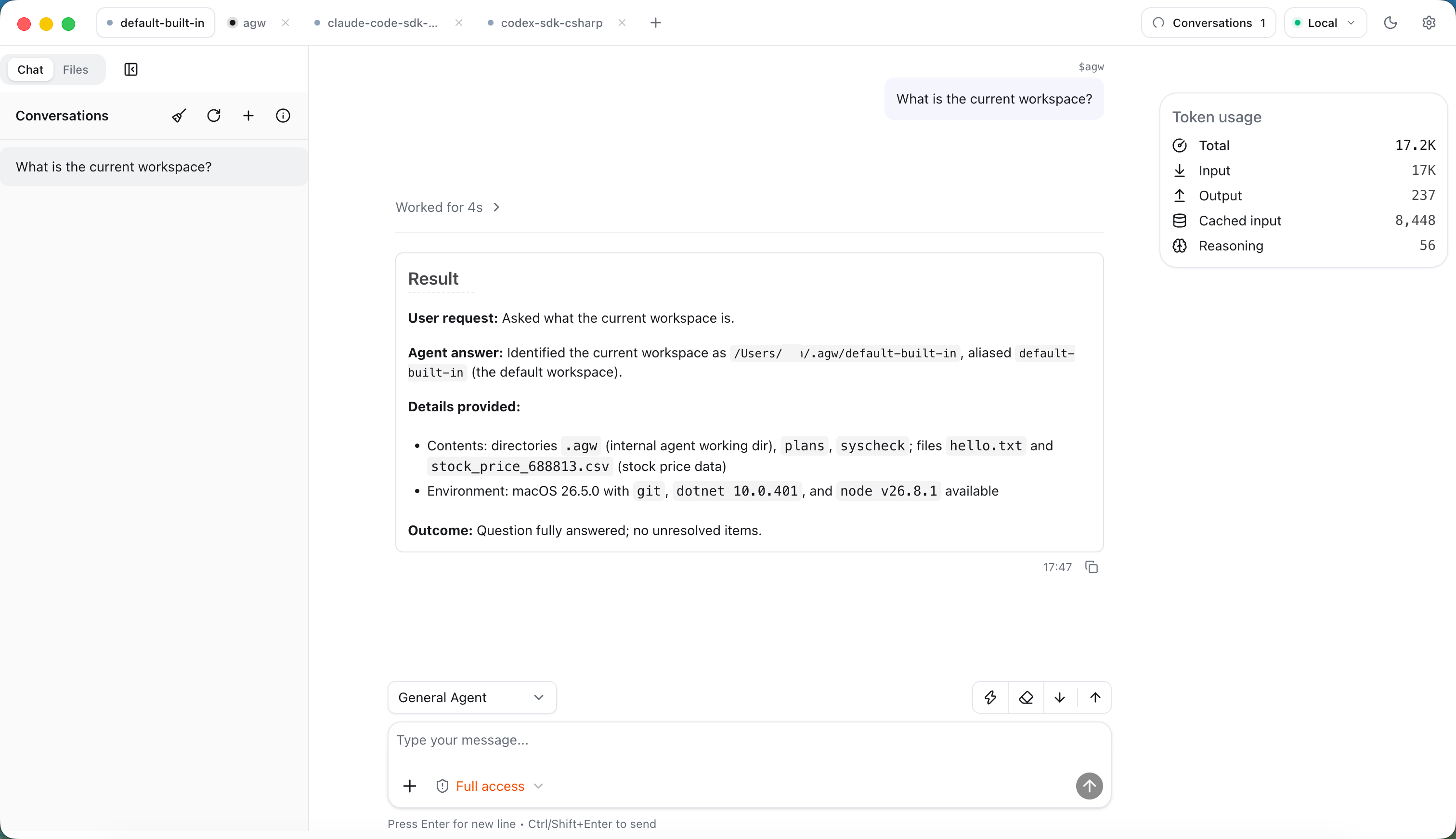
The same Server versus a different Server
To continue on another device, connect to the same Server and select the same Project and conversation. Saved history is available there; recent output may need time to persist or a state check after reconnecting.
Different Servers keep separate configuration and records. If a Project disappears after switching Servers, check the address and identity before recreating it.
Get started
- Initialize the Server and make sure the device can reach its address.
- Sign in to Web with the administrator password or a third-party account. Connect Desktop with an API Key, or, when the Server has identity providers, click Sign in with … to sign in with a third-party account and receive a Server-issued API Key. On Mobile, enter an API Key, or use Import Web configuration to paste the configuration copied with Copy config in Web Settings.
- Confirm the Server and Project, then open an existing conversation or create one.
- Check history and execution status to avoid starting the same task again after switching devices. The icons in the conversation list show Running, Last turn failed, or Last turn interrupted.
Tasks run on the execution host. Connecting from a phone or browser does not move execution to that device. Desktop Full includes a Server; Desktop Client connects to an existing one. Mobile currently offers a source-based setup. Layouts and management entry points vary across clients.
Read the client connection guide · Install and configure Server