Connect external agents
Last updated:
When you connect an external agent, tools such as Claude Code, Codex, or Pi perform the actual work. AGW provides a shared interface for configuration, conversations, and workflows, so you can keep using familiar tools while managing how you use them in AGW.
Prerequisites: the matching CLI is installed on the execution node and works under the Server’s account and environment. Installing it on a browser machine is insufficient; container execution needs the CLI inside the container.
One external agent type, separate configurations
You can create multiple AGW Agent definitions that use the same external agent type, each with its own model selection and settings. For example, both of these agents run Claude Code, but serve different purposes:
| Agent in AGW | External runtime | Model | Purpose |
|---|---|---|---|
| Coding | Claude Code | model1 | Write and modify code |
| Review | Claude Code | model2 | Review code and suggest improvements |
For both definitions, select External → Claude Code, then choose a Model Provider pointing to model1 or model2, respectively. These model names are examples; replace them with models available from your service provider and compatible with the Anthropic protocol.
Selecting Coding or Review in Chat uses that definition’s model configuration. You can also use them in different Agentflow nodes, without repeatedly editing a single Agent definition to switch purposes.
This separation applies to the settings stored in each AGW Agent definition. It does not automatically create separate operating-system accounts or file environments. If a definition has no Model Provider selected, the model comes from the agent’s Extra Settings or the external tool’s own model configuration.
Configure
- Verify the CLI on the execution node and complete its authentication or model configuration.
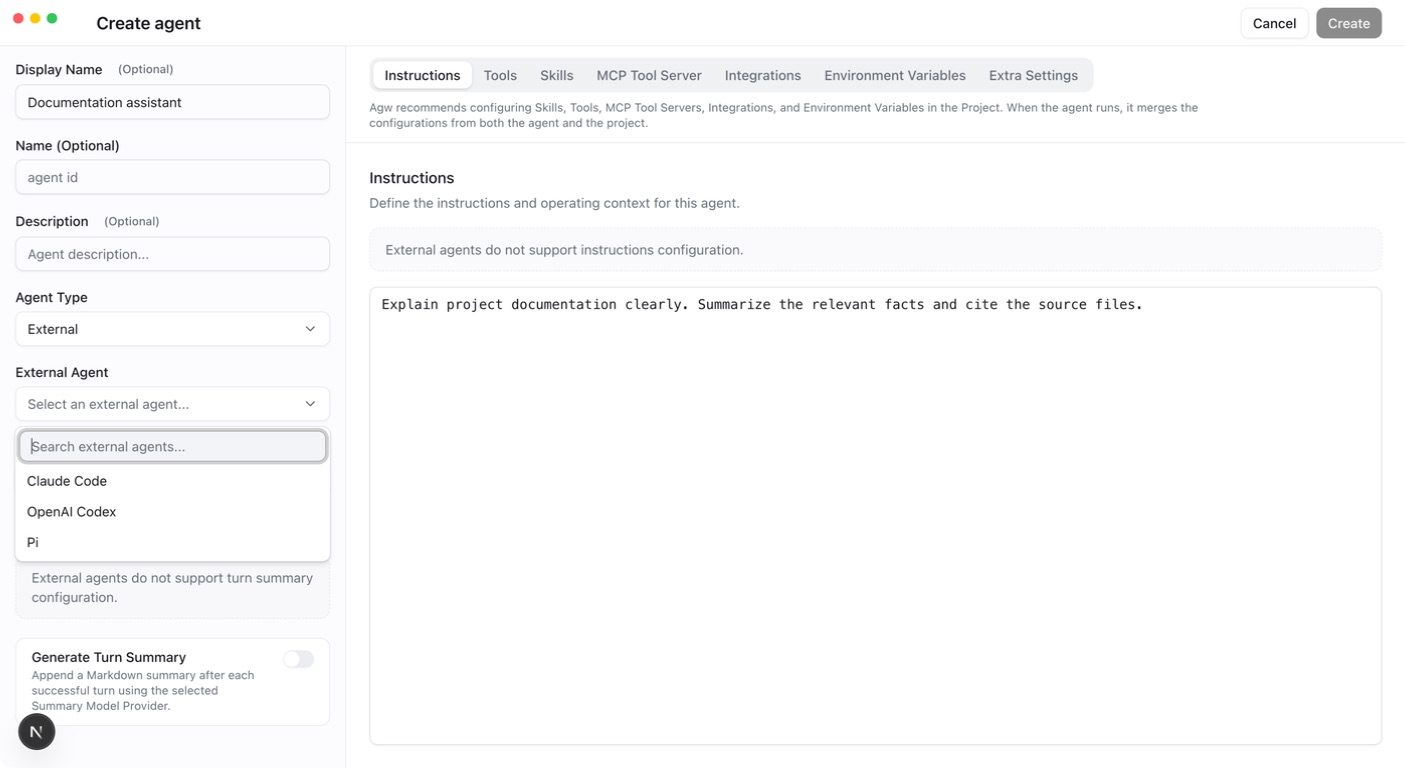
- In Agents, click Create, set Agent Type to
External, and choose the external agent kind. The kind cannot be changed after creation. - Select a Project and ensure its primary workspace is visible to the execution process.
- Optionally select a compatible Model Provider. Leave it empty to use Extra Settings or the external tool’s own configuration. Put other options for the external tool in the JSON object on the Extra Settings tab.
- Send a short task and verify the working directory, output, and permission mode.
Claude Code and Codex receive the Project’s additional directories through their SDK directory options; Pi receives the directory list in each turn’s context. All three start in the primary workspace.
| External agent | Optional Model Provider | Permissions |
|---|---|---|
| Claude Code | Anthropic | Uses the capabilities declared for this target |
| Codex | OpenAI Responses | Currently FullAccess only |
| Pi | All three provider protocols | Currently FullAccess only |
Changes and limitations
The Chat permission menu always lists all three modes and disables those the target does not support, with the reason shown; the server also validates them. Permission or definition edits affect the next turn. Active turns keep the configuration snapshot captured at their start.
Running an External Agent directly in Chat requires InProcess execution. In Distributed mode, including split Control/Data Plane deployments, such turns fail with “Distributed execution currently supports System Agents only.”
AGW’s Instructions, Tools, Skills, MCP Tool Server, and Integrations settings are not passed to any External Agent, including Pi, and those tabs cannot be edited in the form. External agents only receive existing User Memory as context. Configure and verify the external tool’s capabilities in its own environment.
If the CLI is unavailable, check its executable, account, environment variables, and Server logs. If a CLI works in your terminal but fails in AGW, check that the Server account’s PATH includes the executable.